Nutrinomist — the multilingual platform for holistic professionals working online
Calendar

Sessions that set themselves up.

Schedule sessions from a client's record. Invitations, reminders and the forms to fill in go out by themselves, in the client's language and time zone, and Google Calendar stays in sync.

  • Invitations clients accept or decline
  • Forms and reminders before every session
  • Two-way Google Calendar sync
Included from the Free plan
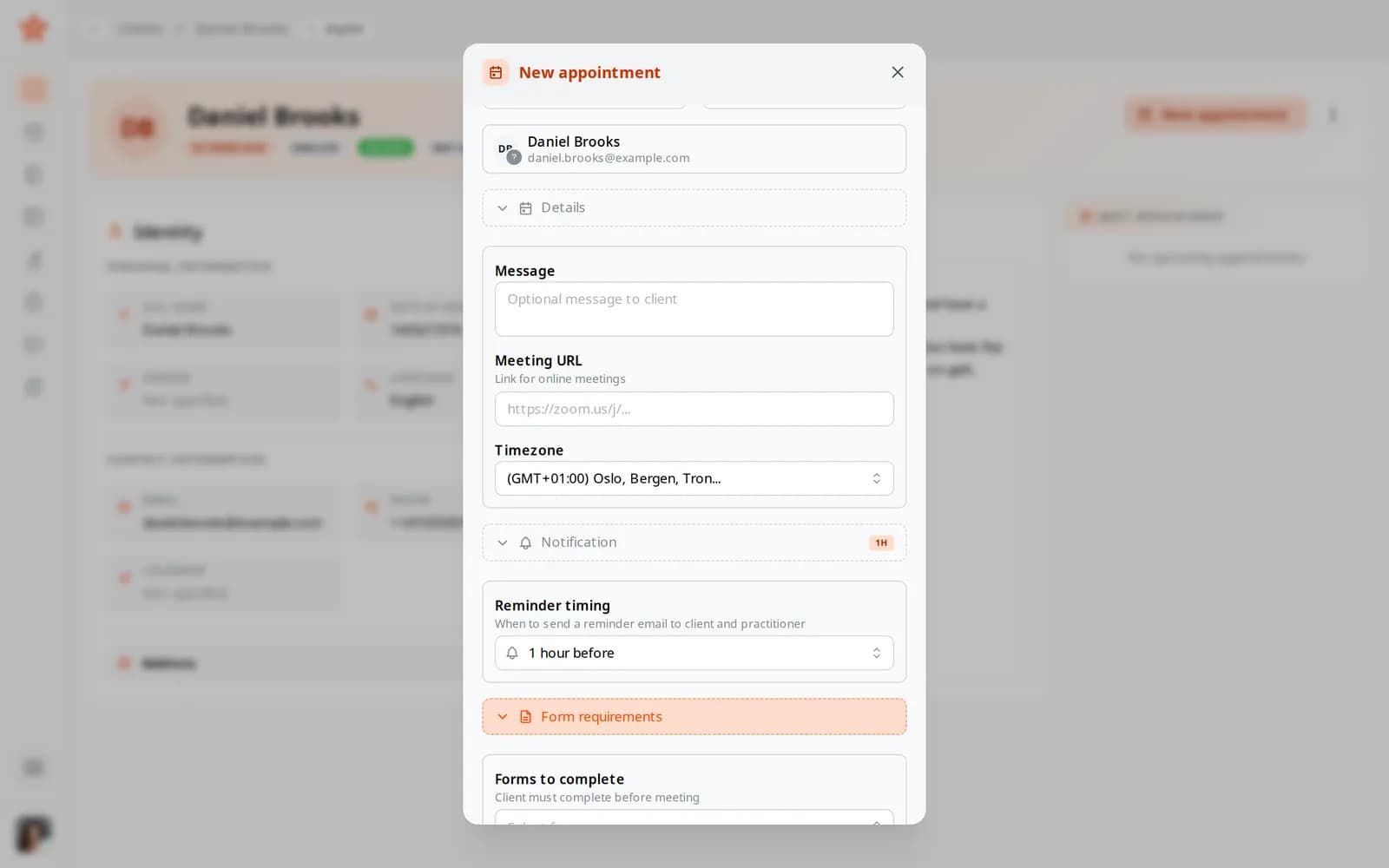
A new appointment for Daniel Brooks with its details, reminder and form requirements open
Use case

A first session, set up in one dialog

A new client in another country has asked for a first consultation next Thursday. Before the session you need their intake form, and you want them there on time.

Today

You work out the time difference, send a video link by message and the intake form by email. The day before, you write a reminder, then check your inbox for the form an hour before the call.

With Nutrinomist

You create the appointment from the client's record and attach the intake form, due a day before. They get an invitation in their language at their local time, accept it in one click, and get a reminder before the session. It appears in your Google Calendar too.

What it does

Everything the calendar does, in detail

Captures from a demo practice in the live app. The calendar and Google Calendar sync are included in every plan; video sessions come with Starter.

Your week at a glance

Every session sits in one calendar, by week on the desktop and as a list on the phone. Jump to today or any date, and open a session to see its details and who has accepted.

What it saves you: Keeping a paper diary next to your client files.

  • A week view on the desktop, a list on the phone
  • Jump to today or to any date
  • Open a session to see its details and who has accepted
An appointment in one dialog

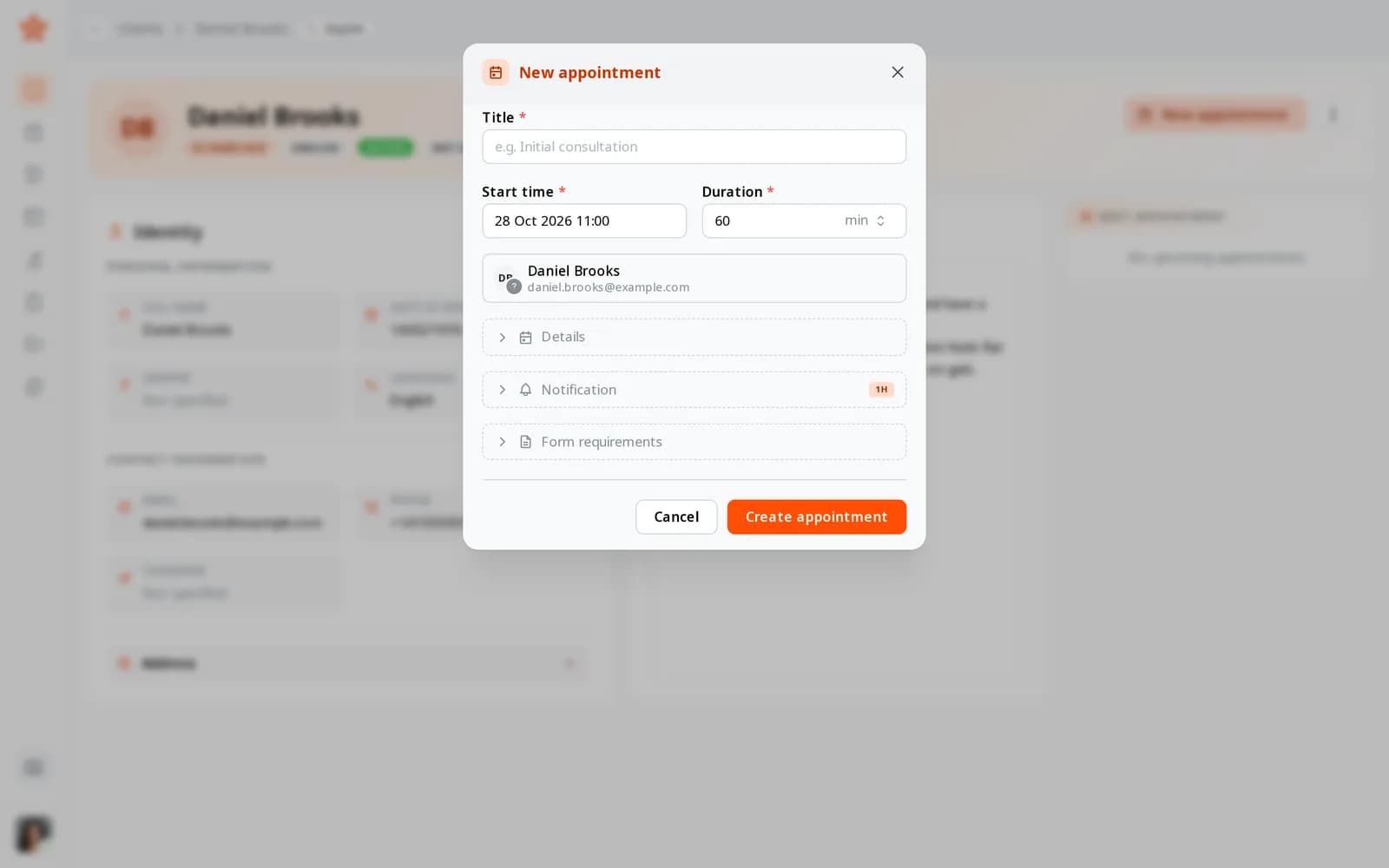
Create a session from the calendar or straight from a client's record. Set the title, start, length and time zone, add one client or several, and write a message. Add a meeting link of your own, such as Zoom, or use the built-in video room.

  • Title, start time, length and time zone
  • One client or several in the same session
  • A message for the client
  • Your own meeting link, or the built-in video room

What it saves you: Re-typing the same details into three apps.

The New appointment dialog opened from Daniel Brooks's record: title, start time, length and the client

Invitations clients can answer

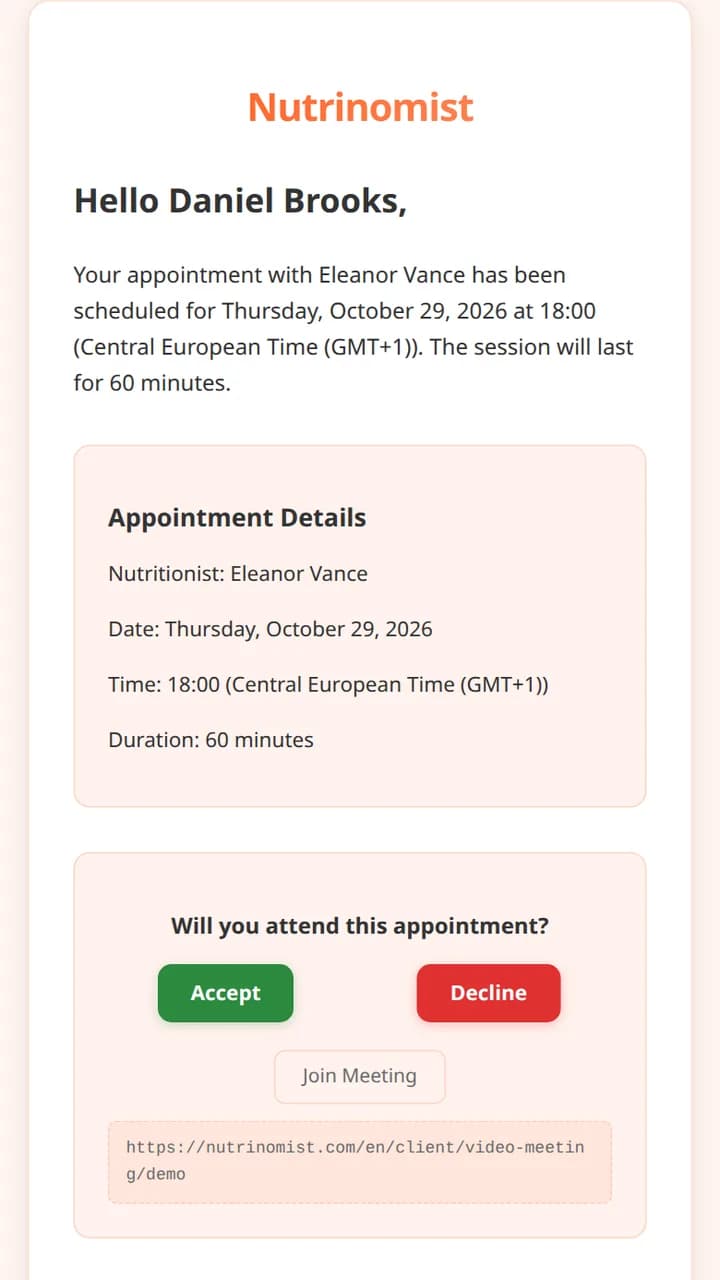
Each client gets an invitation email in their language, with the time in their own time zone and a calendar file their email app understands. They accept or decline in one click, and you see the answer on the session.

  • In the client's language, at their local time
  • A calendar file for Gmail, Outlook and Apple Calendar
  • Accept or Decline, straight from the email
  • Awaiting, accepted or declined on each session

What it saves you: Asking “does Thursday still work?”

The invitation email a client receives, with Accept and Decline buttons

Forms done before the session

Attach the forms a client should fill in before you meet and set a deadline in hours before the session. The client gets a reminder before the deadline unless the form is already done, and the answers are in their record when you start.

What it saves you: Taking the intake questions during the session.

  • Attach one or more forms to a session
  • A deadline, in hours before the session
  • A reminder before the deadline, skipped once the form is done

Reminders that send themselves

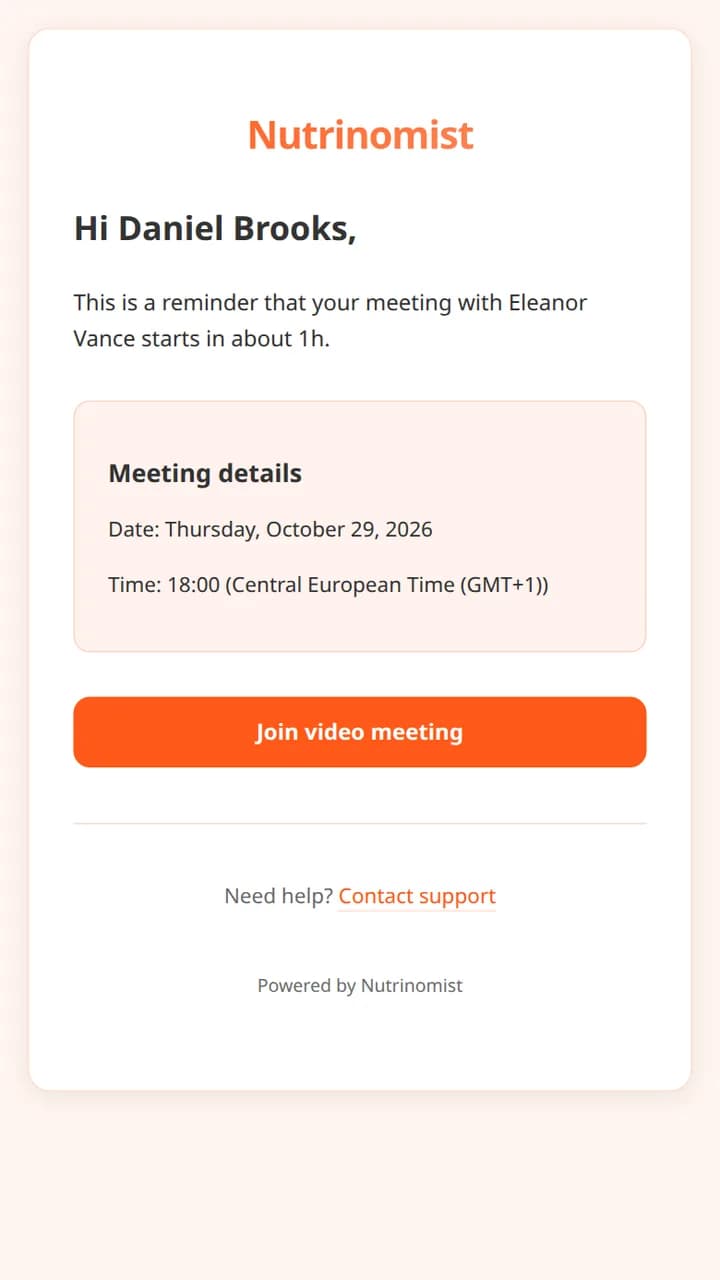
Choose when a reminder goes out, from 15 minutes to a day before. You and your client both get it, and it moves with the session when you reschedule.

  • 15 minutes, 30 minutes, 1 hour, 2 hours or a day before
  • Sent to the client and to you
  • Follows the session when you move it

What it saves you: Writing reminder messages the night before.

The reminder email a client receives an hour before the session, with a Join video meeting button
From Starter

A video room on every session

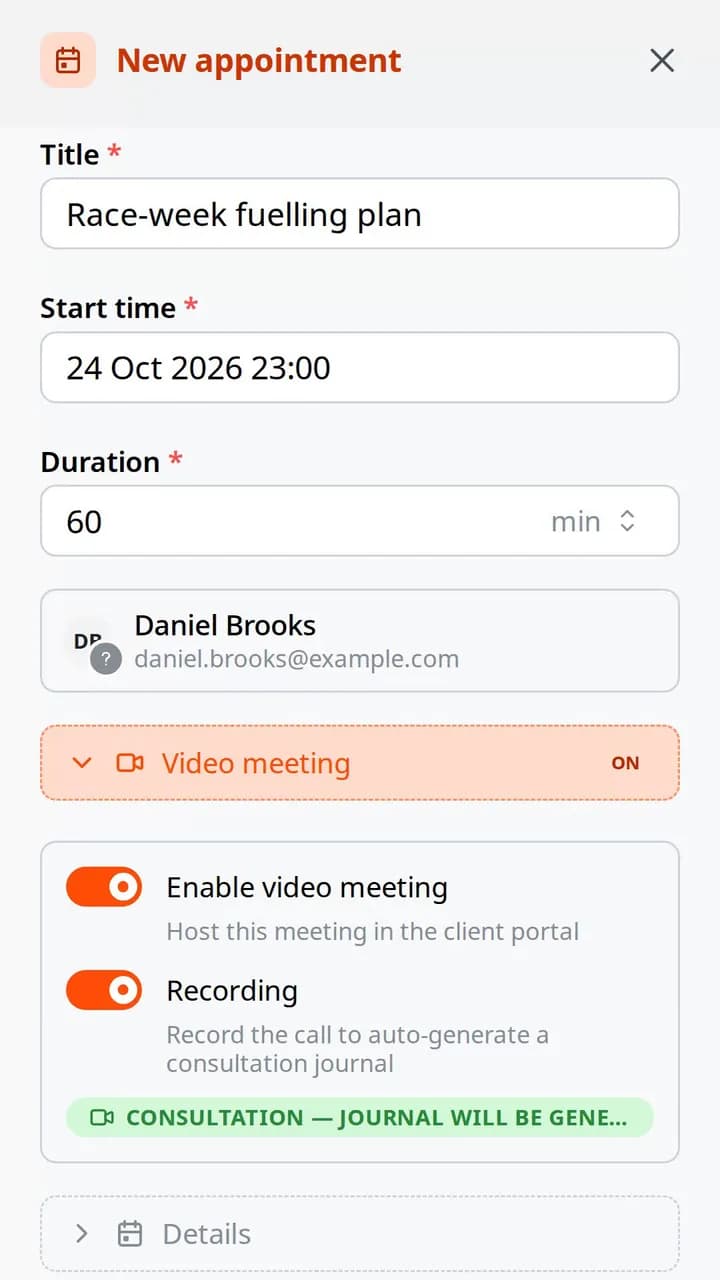
Turn on a video meeting and the session opens in the client portal, with nothing to install. Record it, and a consultation note is written for you after the call.

  • Turn video on for any session with a portal client
  • Record the call to get a consultation note: 3 a month on Starter, unlimited on Pro
  • Join from the session, the invitation or the reminder

What it saves you: A separate video subscription.

A new appointment on a phone with Enable video meeting and Recording switched on

Two-way Google Calendar sync

Connect Google Calendar once from Integrations. Sessions you create in Nutrinomist appear in Google, and changes and cancellations go both ways.

What it saves you: Checking two calendars before you say yes.

  • Connect once, from Integrations
  • Changes go both ways
  • Cancellations follow too

How it works

1

Connect Google Calendar

A one-time setup keeps both calendars the same.

2

Create a session

From the calendar or from a client's record.

3

Attach forms and video

Add the forms to fill in and a video room in the same dialog.

4

Let the emails do the chasing

Invitations and reminders go out without you writing a single message.

Frequently asked questions

Can clients pick a time themselves?

A visitor can ask for a call from your page and suggest a time. You then create the session, and they get an invitation to accept.

Can I require a form before a meeting?

Yes. Attach any form to the session and set a deadline. The client gets a reminder before the deadline unless they have already filled it in.

Is the calendar included in the Free plan?

Yes. The calendar, invitations, reminders and Google Calendar sync are in every plan, Free too. Video sessions come with Starter.

Works even better together

Every Nutrinomist feature is built to hand work to the next one.

Fill your calendar, not your inbox

Let invitations, reminders and forms coordinate themselves.