Nutrinomist — the multilingual platform for holistic professionals working online
Worksheets

Every consultation, side by side.

A worksheet puts a client's answers in a grid: one row per question, one column per consultation. Start it from a completed form or a PDF, and see what changed at a glance.

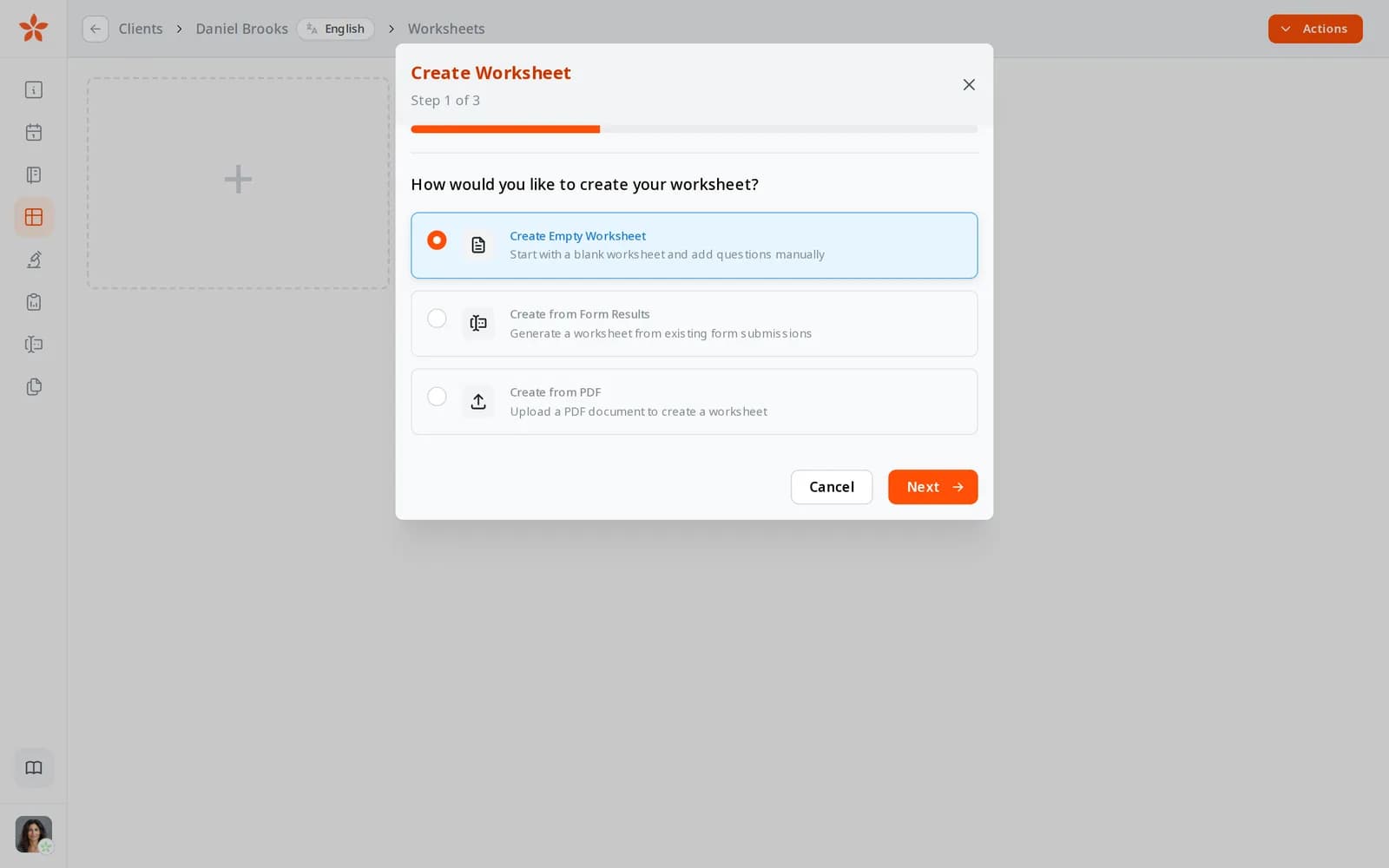
  • Start from form answers, a PDF or a blank grid
  • One column per consultation, with a baseline
  • Starred questions and the previous answers beside each cell
Included from the Starter plan
Creating a worksheet: start with an empty worksheet, from form results or from a PDF
Use case

Seeing progress at the third consultation

A client with low energy and poor sleep comes back for the third time. You want to know quickly what has changed since the first session, and what hasn't.

Today

You open the intake form, then your notes from the second session, then the follow-up form, side by side in three windows. Finding the same question in each takes most of the time before the client arrives.

With Nutrinomist

You open the client's worksheet. Every question is a row and every consultation a column, with the first one pinned as the baseline. You look along the starred rows for sleep and energy and see the change at a glance.

What it does

Everything a worksheet does, in detail

Captures from a demo practice in the live app. Worksheets are included from the Starter plan.

One row per question, one column per consultation

A worksheet lines up a client's answers over time. Each consultation gets its own column, and the next one adds another, so the history stays in order by itself.

What it saves you: Lining up the same question across a pile of documents.

  • Questions as rows, grouped into pages you switch between as tabs
  • Add a consultation column whenever you meet
  • Fill in answers right in the grid while you talk
  • Text, yes or no, ratings, choices, grids and attached files
Start from the client's form answers

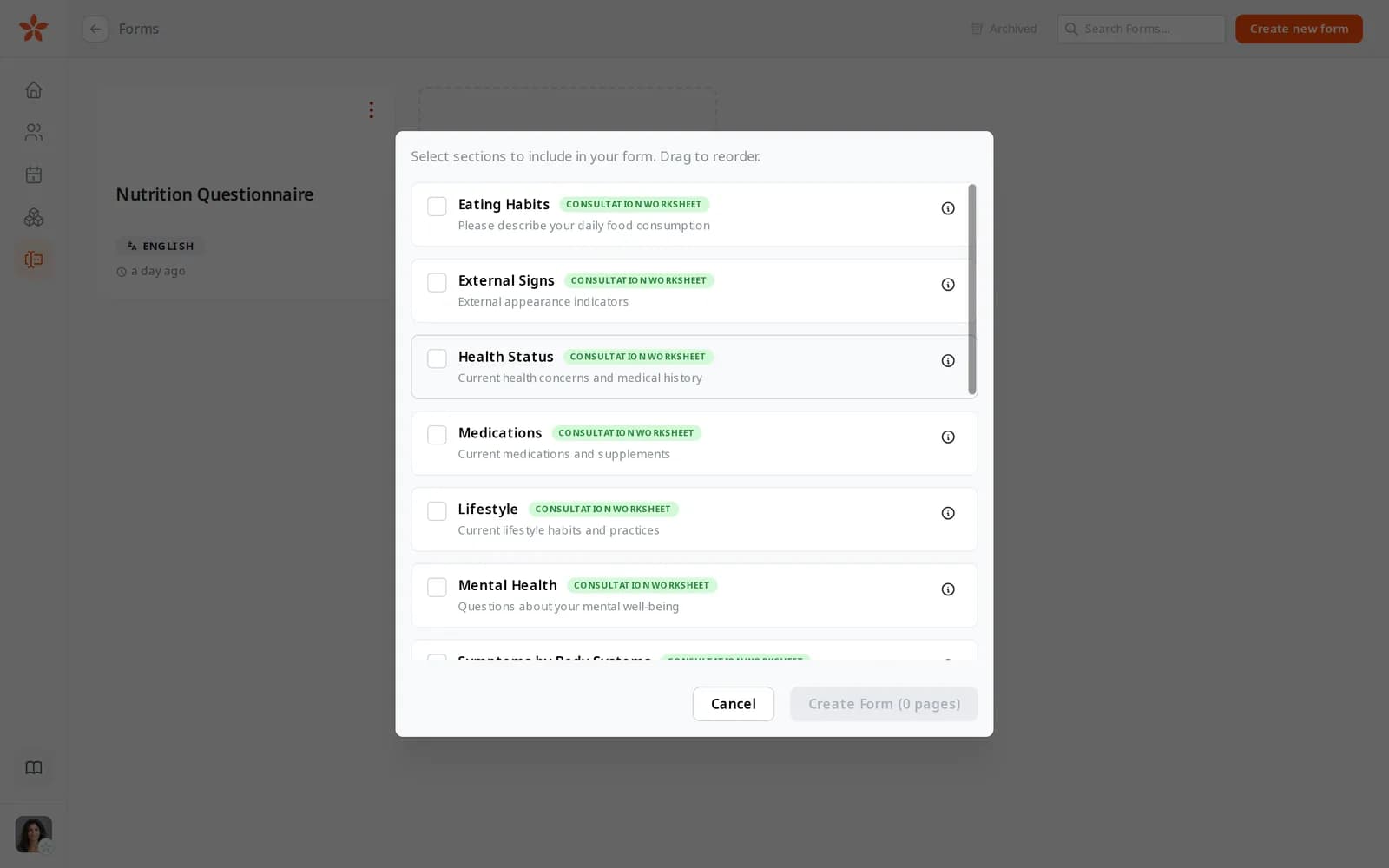
Create a worksheet from a completed form and every answer lands in the right row. Template sections marked as consultation worksheet are the ones made to be asked again.

  • Create a worksheet from a completed form in a few clicks
  • Template sections marked Consultation worksheet are made for it
  • Import a later form into the same worksheet as a new column

What it saves you: Copying answers from a form into your notes.

Template sections marked Consultation worksheet: Eating Habits, External Signs, Health Status, Medications, Lifestyle and Mental Health

Bring in records from before Nutrinomist

Upload a PDF of an earlier form or consultation notes, and AI reads its questions and answers. You see what it found before anything is added.

What it saves you: Retyping old paper records.

  • Create a worksheet from a PDF, or add one to an existing worksheet
  • Check what AI extracted before you import it
  • PDFs up to 1 MB

See what changed since the start

Pin a consultation as the baseline, and open any answer to see the earlier ones beside it. Step from one consultation to the next without losing your place.

What it saves you: Flicking between old notes during a session.

  • Pin any consultation as the baseline
  • Open an answer to see the baseline and the previous answers next to it
  • Step across consultations, one question at a time

Keep the questions that matter in view

Star the questions you track for this client and show only those. Hide the ones that don't apply, and search for any question by name.

What it saves you: Scrolling past 100 questions to find the five you follow.

  • Star questions, and show only the starred ones
  • Hide questions, pages and consultations you don't need
  • Search the rows by name
  • A cozy or compact view

Nothing gets lost or changed by accident

Every change saves as you type. Lock a finished consultation so it can't be edited, and drag questions and consultations into the order you want.

What it saves you: Worrying that a record was overwritten.

  • Saves as you type
  • Mark a consultation read-only, and make it editable again when you need to
  • Drag to reorder, and double-click to rename

How it works

1

Create a worksheet

Start from a completed form, a PDF or a blank grid in the client's record.

2

Add consultations as columns

Each session gets its own column, imported from a form or filled in as you talk.

3

Compare

Pin a baseline, star the questions you track, and open any answer to see the earlier ones.

4

Keep it tidy

Lock finished consultations and hide what doesn't apply.

Frequently asked questions

How do form answers get into a worksheet?

Create a worksheet from a completed form, or import a later form into an existing one. The questions become rows and the form becomes a consultation column.

Can I bring in records from before Nutrinomist?

Yes. Upload a PDF of earlier consultation notes or a filled-in form, up to 1 MB. AI extracts the questions and answers, and you check them before they are added.

Which plan includes worksheets?

Worksheets are included from the Starter plan.

Works even better together

Every Nutrinomist feature is built to hand work to the next one.

Put a client's consultations on one screen

See the whole journey in a grid, instead of a pile of old forms.