
Let Claude or ChatGPT write your protocols, and keep client records in Nutrinomist

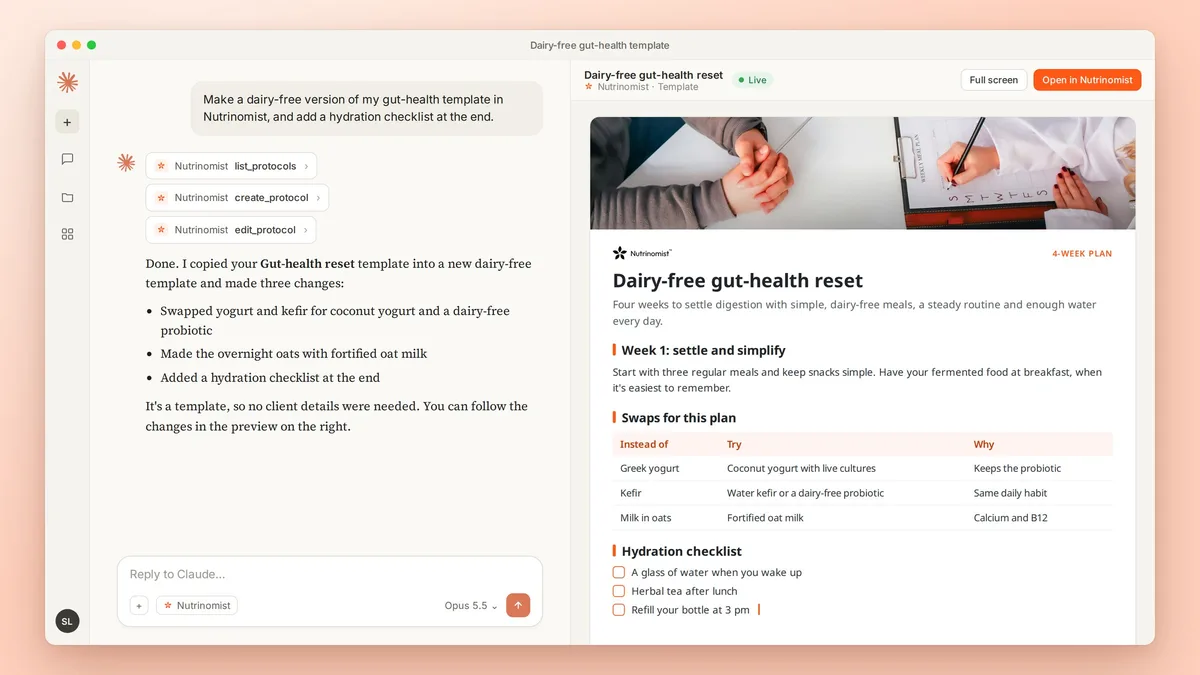
Ask Claude to "make a dairy-free version of my gut-health template", and the draft appears beside the chat, laid out the way your client will see it, updating as Claude writes. When it reads right, open it in Nutrinomist, add your client's details and send it. You review a draft instead of rewriting a template.
You can start today. With Limited access, your assistant writes protocols, templates and segments, while chats, transcripts, journal entries and form answers stay in Nutrinomist. For work on client records, Nutrinomist's built-in AI reads lab reports and writes session summaries under our DPA, with nothing to set up. And whatever you connect, nothing reaches a client until you send it.
Start in four steps
- Copy the server URL from Integrations in Nutrinomist. Connecting an assistant is part of the Pro and Team plans.
- Add it to your assistant as a custom connector. Claude, Perplexity, Mistral and many others support it.
- Sign in, choose Limited access and click Allow.
- Ask for your first template. "Make a dairy-free version of my gut-health template" is a good start.
Connect your assistant → Not on Pro yet? Compare plans.
What can an AI assistant do for a nutrition practice?
Most practitioners want help with writing first. Ask the way you'd ask a colleague:
- "Turn my notes on a low-FODMAP start into a four-week template with a shopping list and a sample day."
- "Write a hydration checklist segment I can drop into any protocol."
- "Make a dairy-free version of my gut-health template."
- "In this draft, turn the supplement paragraph into a table with dose and timing."
- "Rewrite the sleep section in plain words a client will follow."
In Claude and ChatGPT, the draft opens as a live preview in the chat and updates as the assistant writes. When it reads right, open it in Nutrinomist, create the client's protocol from it, add the personal details and send it. The setup steps for each assistant show where to add the connector.
On ChatGPT Plus? OpenAI offers custom connectors on ChatGPT Pro and its business plans, not on Plus. Claude's free plan can add one, and Nutrinomist's built-in AI works whichever assistant you use.
Built-in AI for lab results and session notes
Some work needs your clients' records. That's what Nutrinomist's built-in AI is for:
- Lab results: AI reads lab reports in any language, converts the values to SI units and checks each one against a standard and an optimal range.
- Session summaries of your recorded consultations, structured by your own summary template.
- The AI client summary, for a quick picture of each client.
- AI actions in protocols: fix, improve, simplify or shorten a block, or turn it into a checklist or table, and review the suggestion before anything changes.
It runs on Anthropic's models under a zero data retention agreement and our DPA, so there's nothing to sign or set up. Voice messages and recorded meetings are transcribed by Deepgram in the EU, opted out of model training. See how lab results work.
How your client records stay protected
Each assistant you connect gets its own access level, and you can change it any time under Integrations → Connected assistants.
| At a glance | Limited access | Full access |
| Made for | Any assistant; on a personal plan, for templates and segments | AI business plans with a data processing agreement, such as ChatGPT Business or Claude Team |
| Drafts protocols, templates and segments | Yes | Yes |
| Sees | Your templates, segments and unsent protocols, plus client and form names | Your whole workspace: clients and their details, chats, transcripts, journal, form answers, calendar and protocols |
| Never sees | Chats, voice and meeting transcripts, journal entries, form answers, your calendar, client contact details and notes, sent protocols | Other practitioners' clients |
| Sends anything to a client | Never | Never |
Limited access isn't a request your assistant is trusted to respect. Nutrinomist enforces it on every request:
- The tools aren't there. A Limited assistant isn't offered the tools that read chats, transcripts, journal entries, form answers or your calendar.
- Asking anyway gets a refusal. If the assistant requests client records, Nutrinomist refuses and tells it that you can change its access under Integrations.
- Sent protocols are off limits. Once a protocol has reached a client, a Limited assistant can't read or copy it.
- Every request is logged with the assistant, the tool, the time and its access level.
Tip: templates and segments are the sweet spot on a personal plan. No client is attached, so no client data is involved: build once, then personalise in Nutrinomist. When the assistant works on a client's draft, it sees that client's name and the draft, so keep that work for a business plan with a DPA.
When you want more: Full access
Want your assistant to prepare you for a session from a client's whole record, or sum up unread messages before your day starts? That's Full access. It needs your AI provider's business plan with a data processing agreement (DPA), the contract that makes the AI company work for you rather than for itself: ChatGPT Business or Claude Team, from about $40 a month for two seats. Switching is one setting under Integrations, with no reconnecting.
Before you switch, work through our GDPR checklist for AI assistants: what GDPR asks of you, which plans qualify, and what to switch off in each assistant.
Start with one template this week
You don't need a new AI plan or a legal project to put AI to work in your practice.
- Connect with Limited access. Copy the server URL from Integrations, add it to Claude, Perplexity or Mistral, sign in and choose Limited.
- Switch off training, memory and chat rating in your assistant, once. The GDPR checklist shows where in each assistant.
- Ask for your first template, such as "make a dairy-free version of my gut-health template". Review it in the preview, open it in Nutrinomist, personalise it and send.
- Let the built-in AI handle client records: lab results, session summaries and client summaries, under our DPA.
When you want your assistant to work from a client's whole record, move it to a business plan with a DPA and switch it to Full access. It's one setting, with no reconnecting.
Connect your assistant → · Compare Pro and Team plans
This guide is for practitioners in the EU and the UK, where GDPR and UK GDPR apply. Provider details were checked on 15 November 2026 and change often: if you spot one that has, tell us and we'll update it. This is general information, not legal advice.